

GPU Container Job
Create a GPU container job on CosmicAC to run your ML workloads. GPU containers provide direct shell access, support custom environments, and let you train models on high-performance hardware.
Prefer the command line? See GPU Container: How to Create a GPU Container Job for CLI instructions.
Prerequisites
- CosmicAC account.
Create a GPU Container job
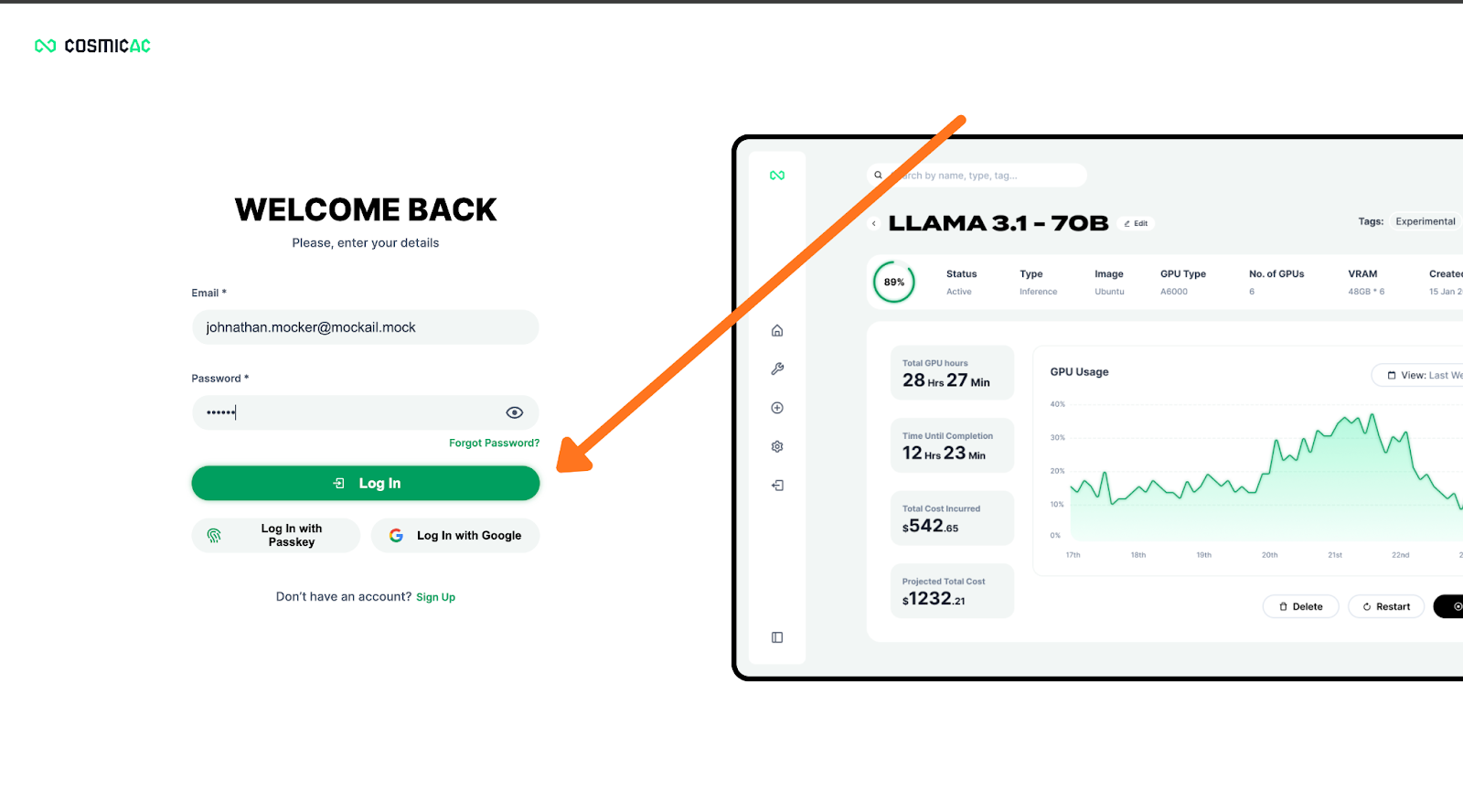
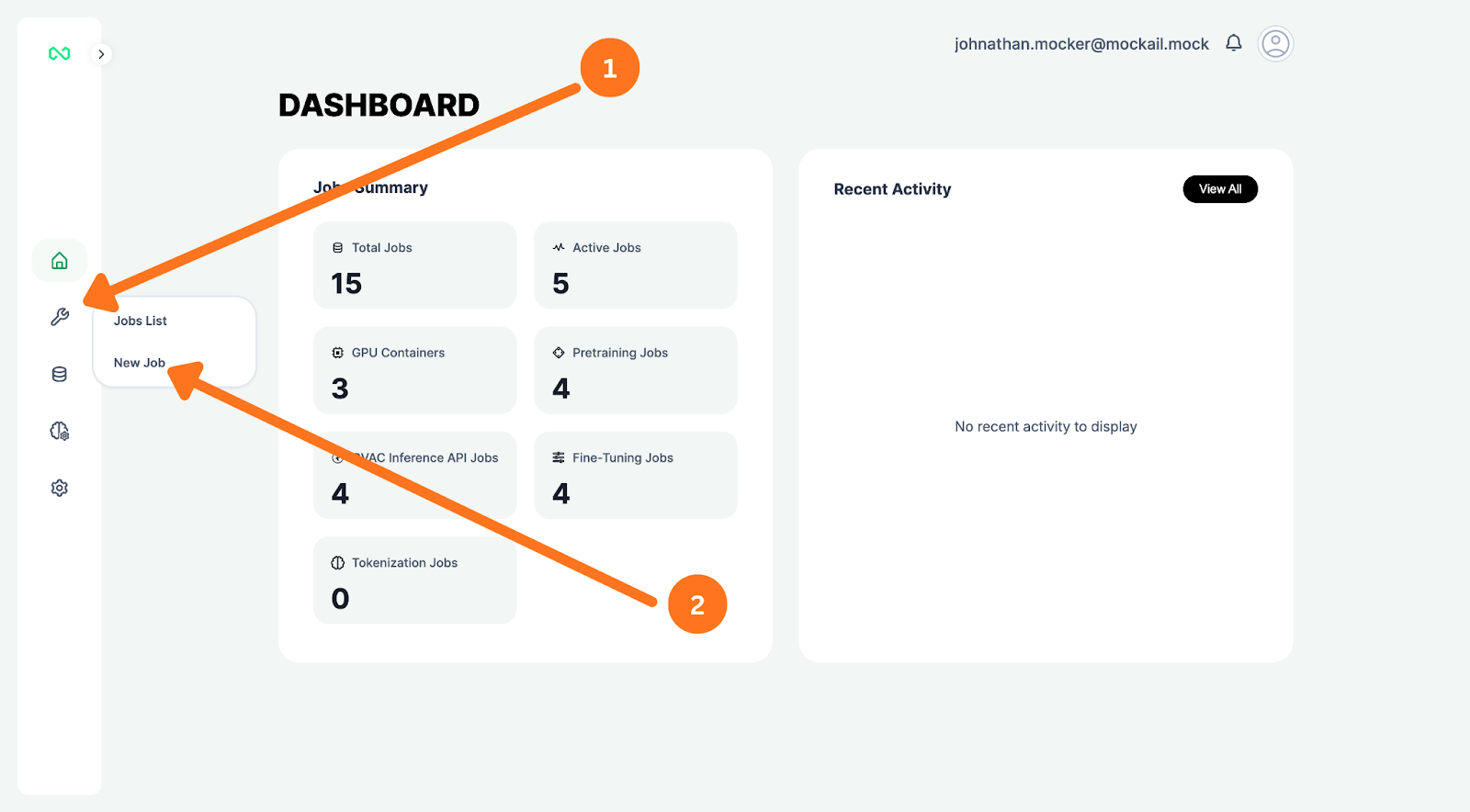
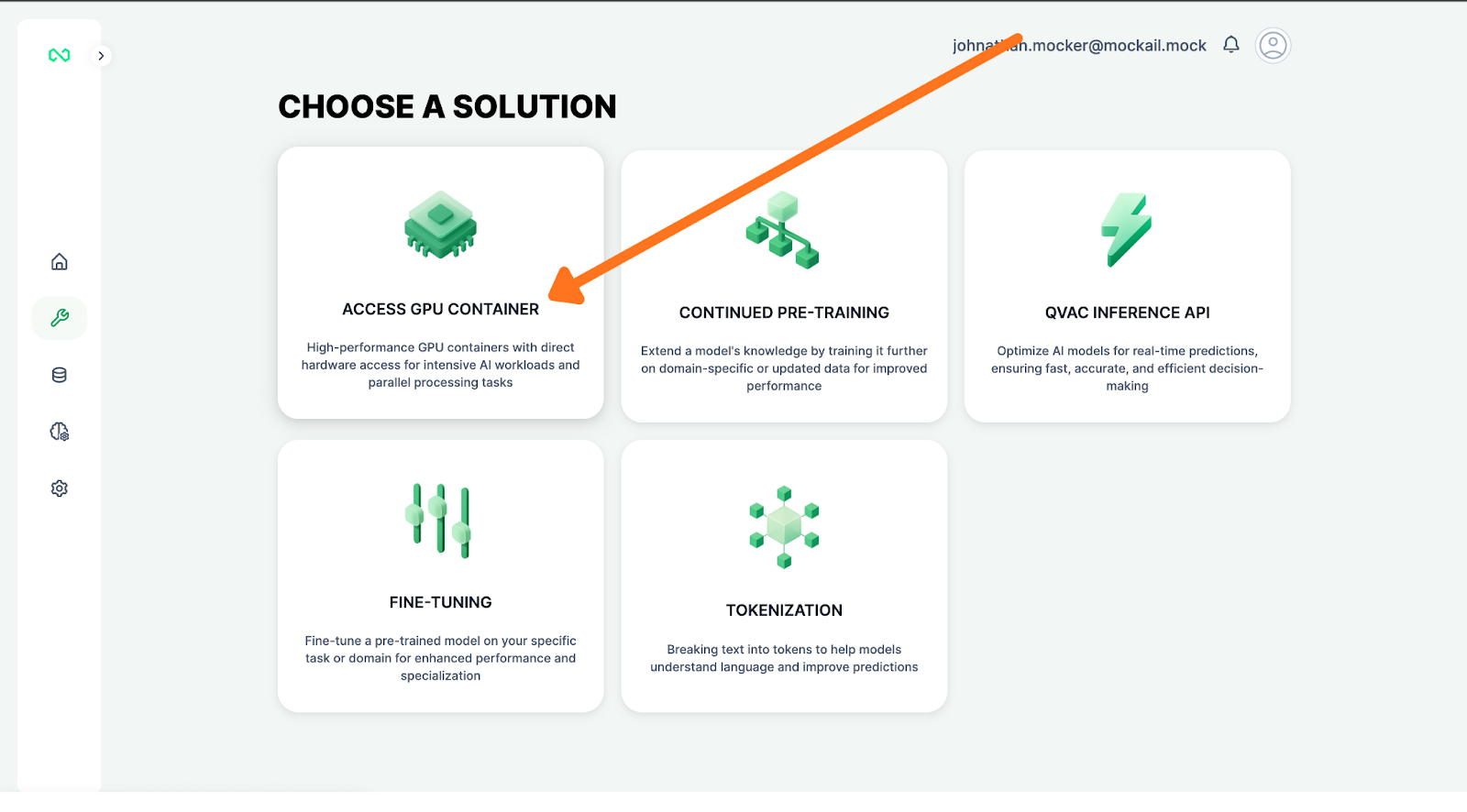
Configure job details
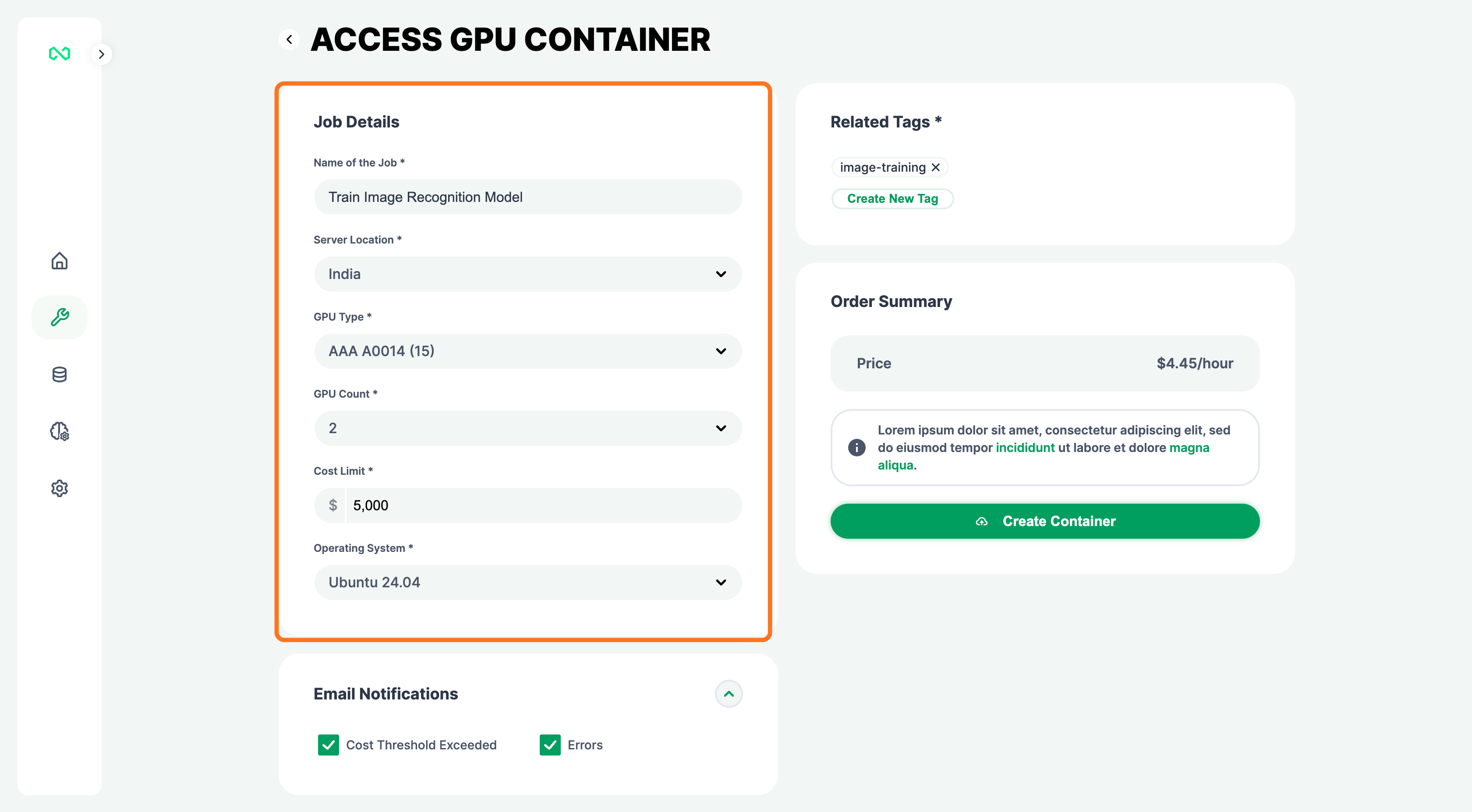
Fill in the required fields:
| Field | Description |
|---|---|
| Name of the Job | A descriptive name for your job |
| Server Location | Region where your container runs |
| GPU Type | Hardware configuration |
| GPU Count | Number of GPUs to allocate |
| Cost Limit | Maximum spend threshold (USD) |
| Operating System | Base OS for the container |
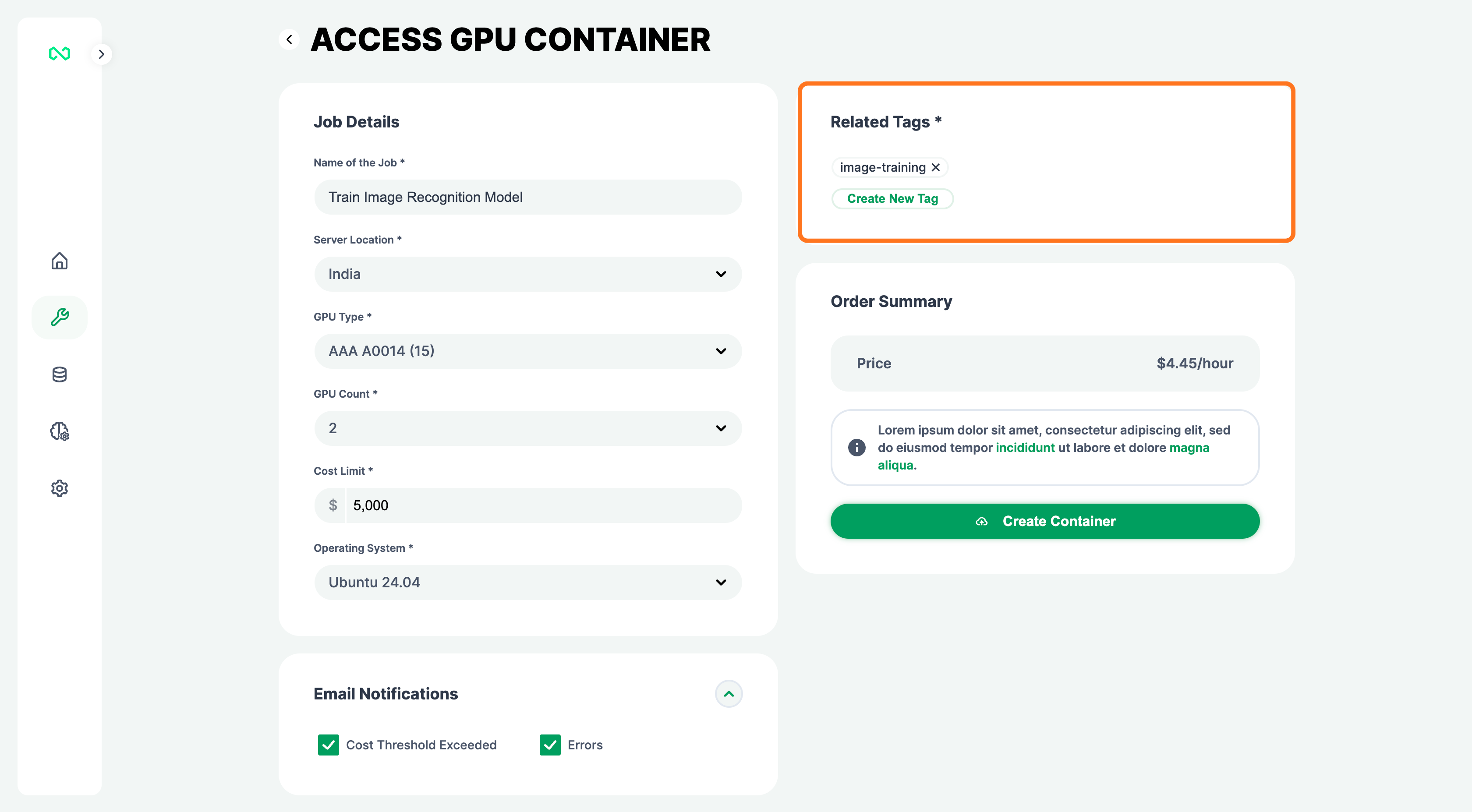
Add tags
Add at least one tag under Related Tags to organize your job. Click Create New Tag to add a custom tag.
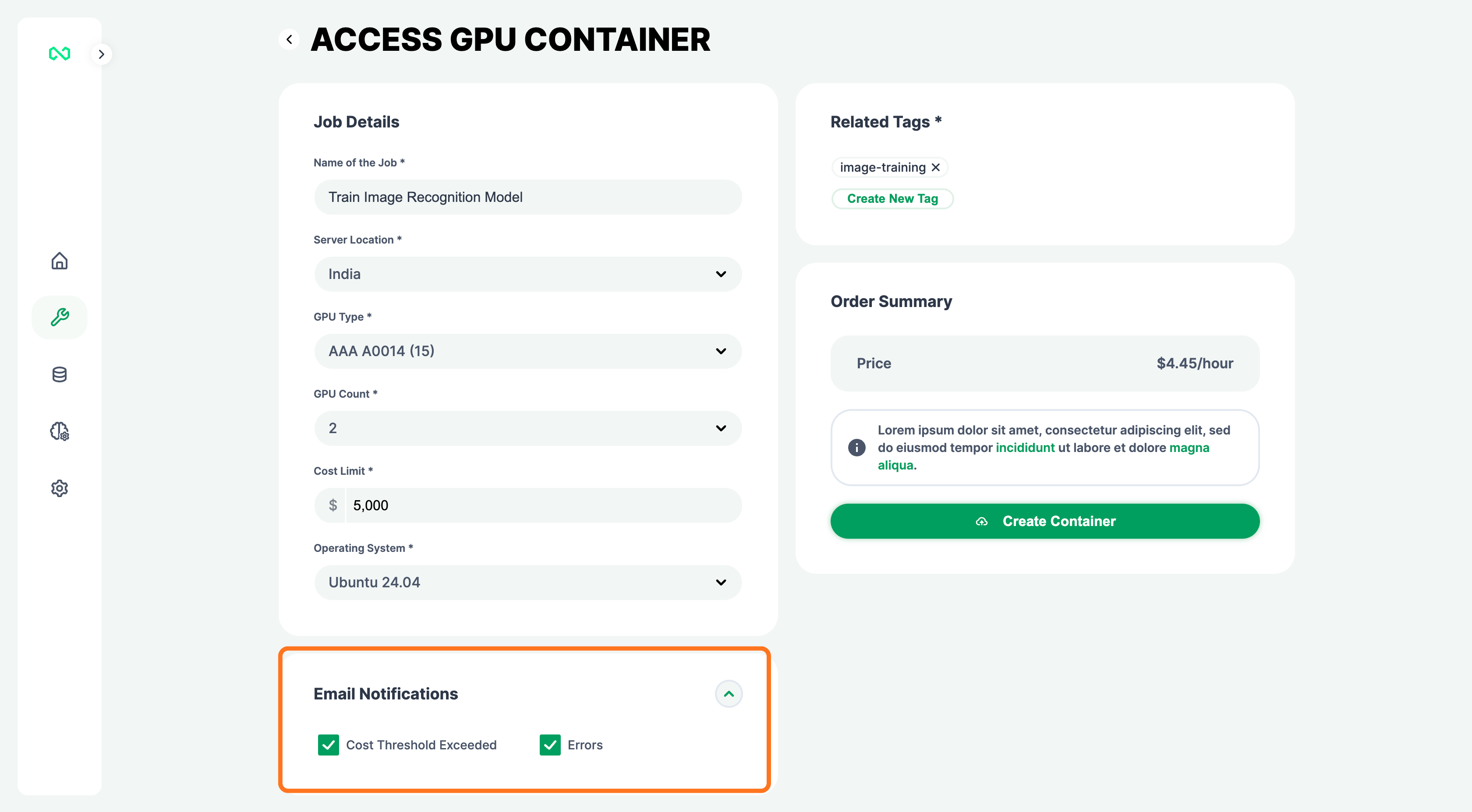
Configure notifications (Optional)
Enable Email Notifications to receive alerts when a cost threshold is exceeded or errors occur.
Create the container
Review the Order Summary and click Create Container.
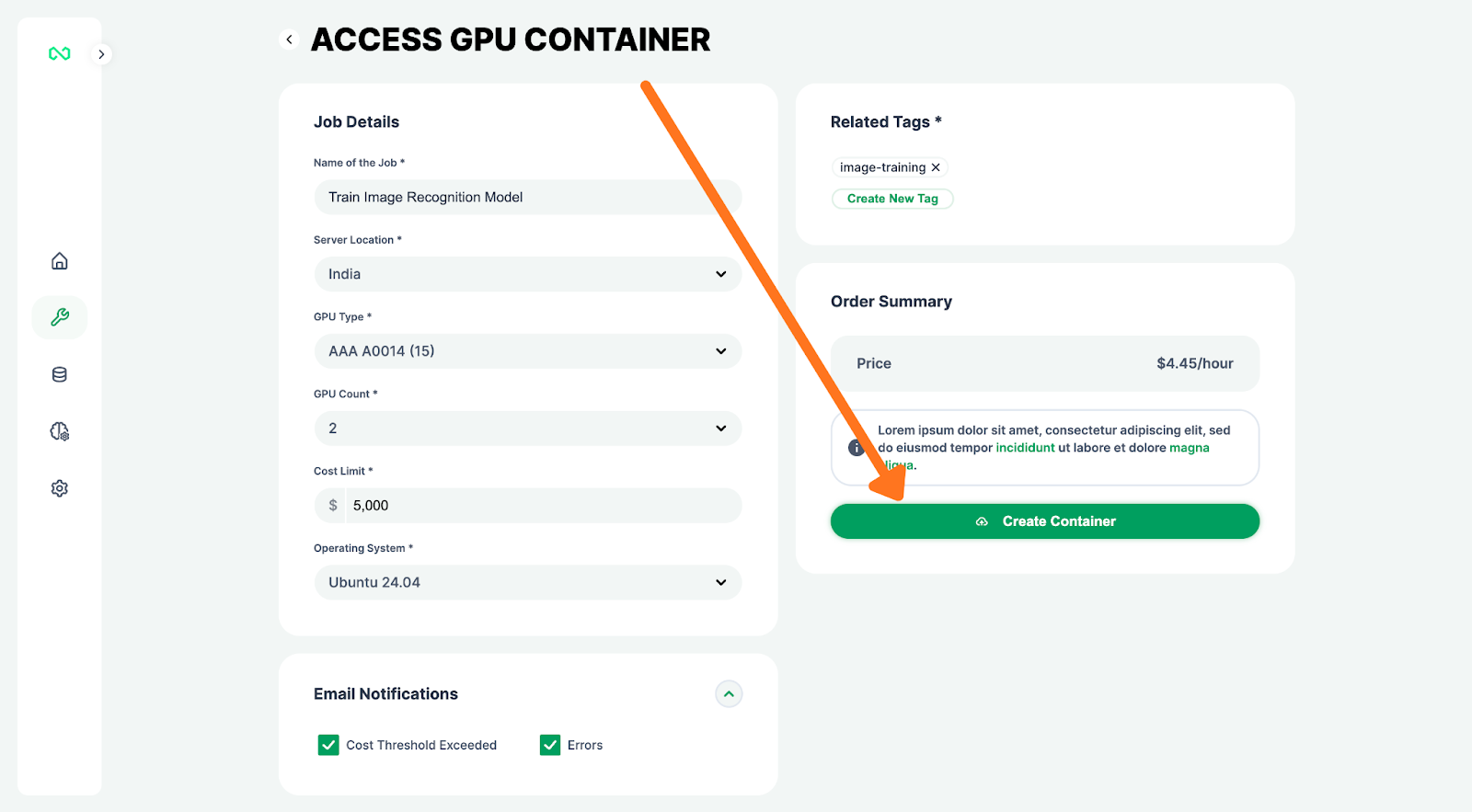
Your container will be provisioned in a few minutes. Once ready, the status changes to Running.
What's next?
- How to Access a GPU Container — Connect to your container and open a shell session.
- GPU Types — View available GPU options.